
Guide 4 of 4 · Desktop
Make your first sale and close the day
Sign in with your PIN, open the cash drawer, sell, give change and close the shift.
All guides · About 5 minutes · For owner & cashier
Before you start, have ready
- An activated till
- Your employee code and PIN
- The cash in your drawer counted
Step 1: Sign in with your PIN
Type your employee code (the owner is OWNER01) and your PIN, then press "Sign in". Each staff member gets their own code and PIN from the portal.
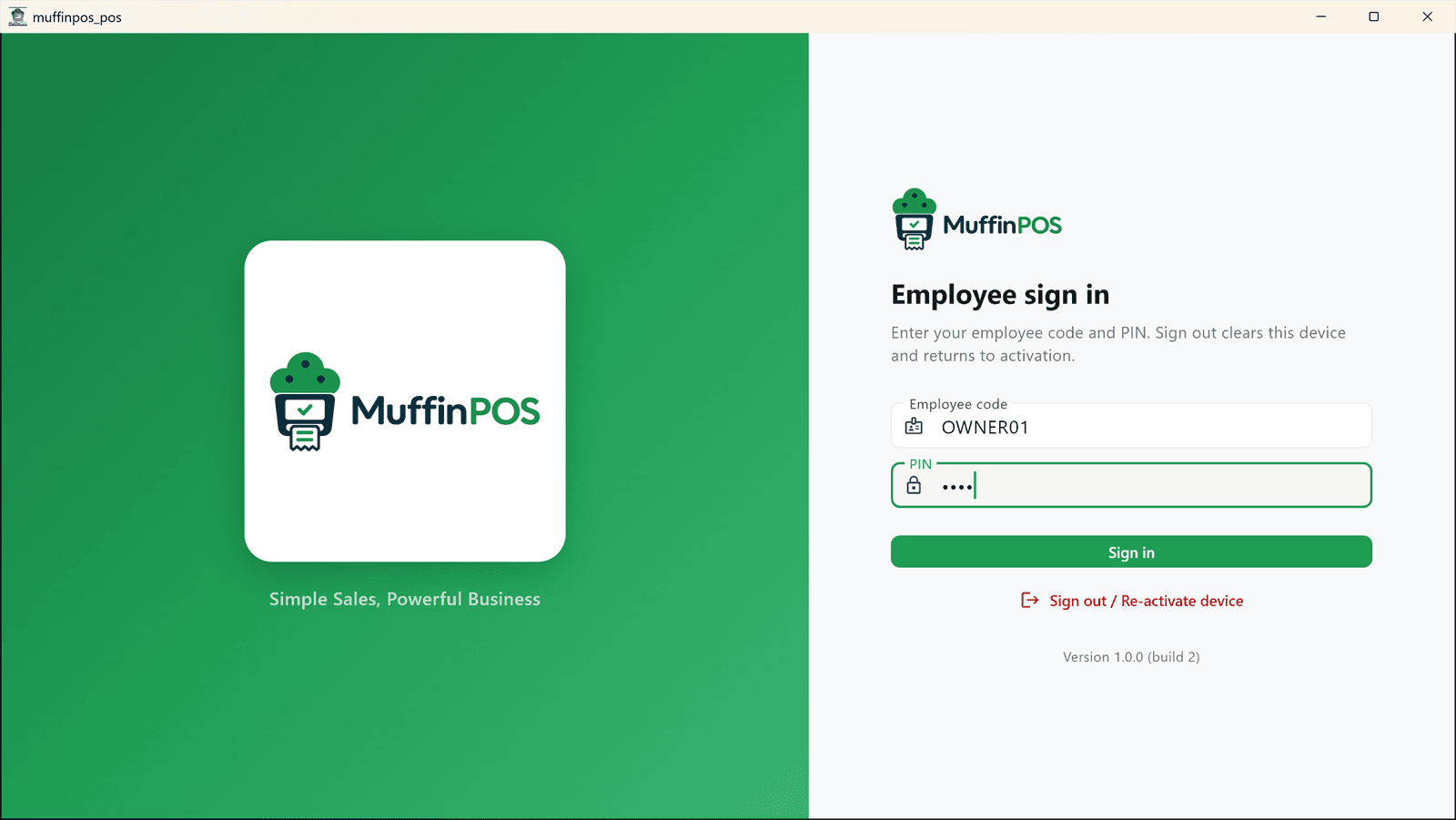
Till sign-in screen asking for employee code and PIN Step 2: Open the register
Count the cash in the drawer and type the total. Press "Open register & sync menu".
This starting amount is how MuffinPOS knows how much cash should be in the drawer at the end of the day.
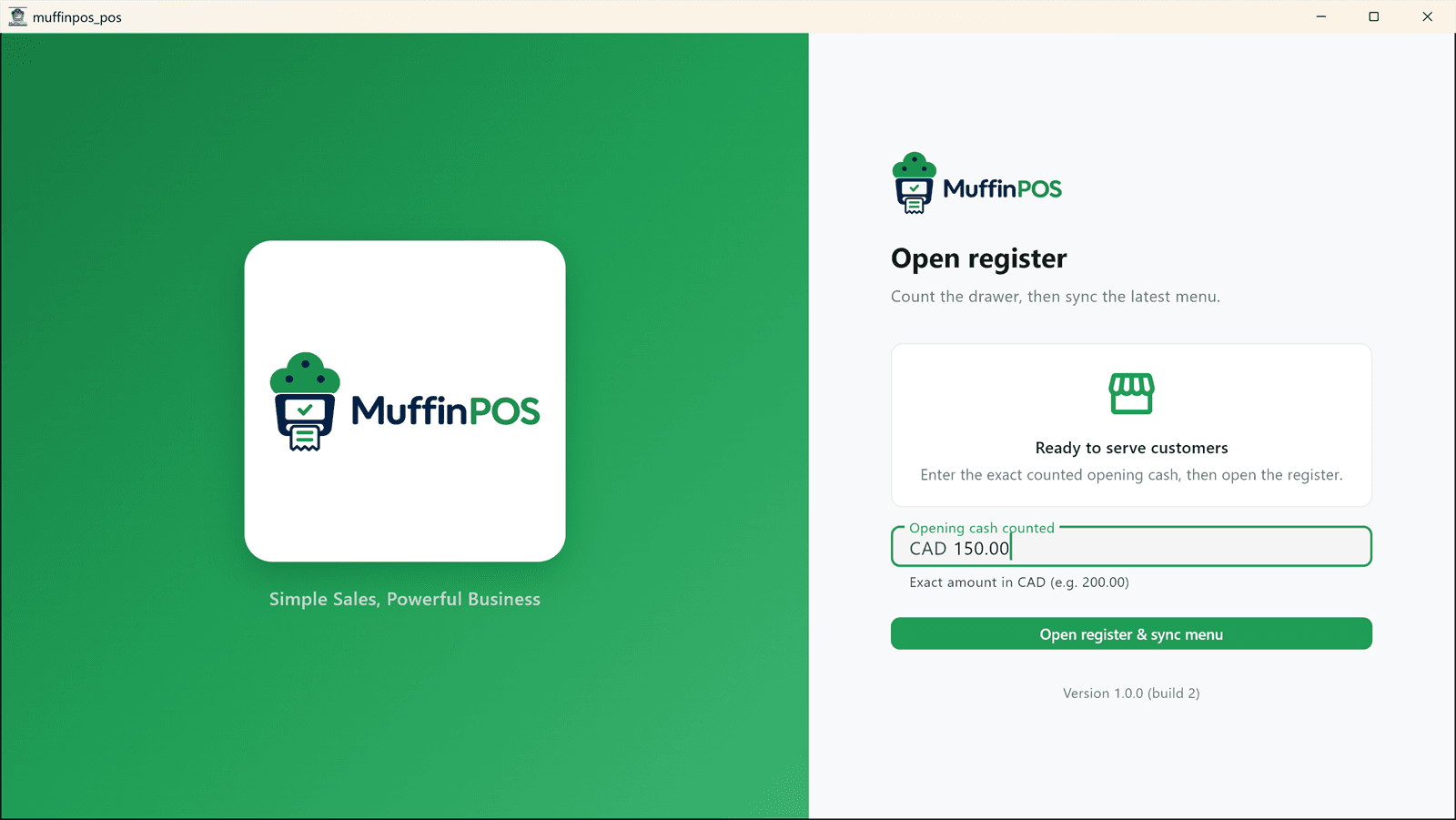
Open register screen with opening cash of 150.00 Step 3: Add items to the order
Tap an item to add it. Tap it again, or use the + and - buttons on the right, to change how many.
The right side shows the subtotal, tax and total as you go. Press the bin icon at the top to start over.
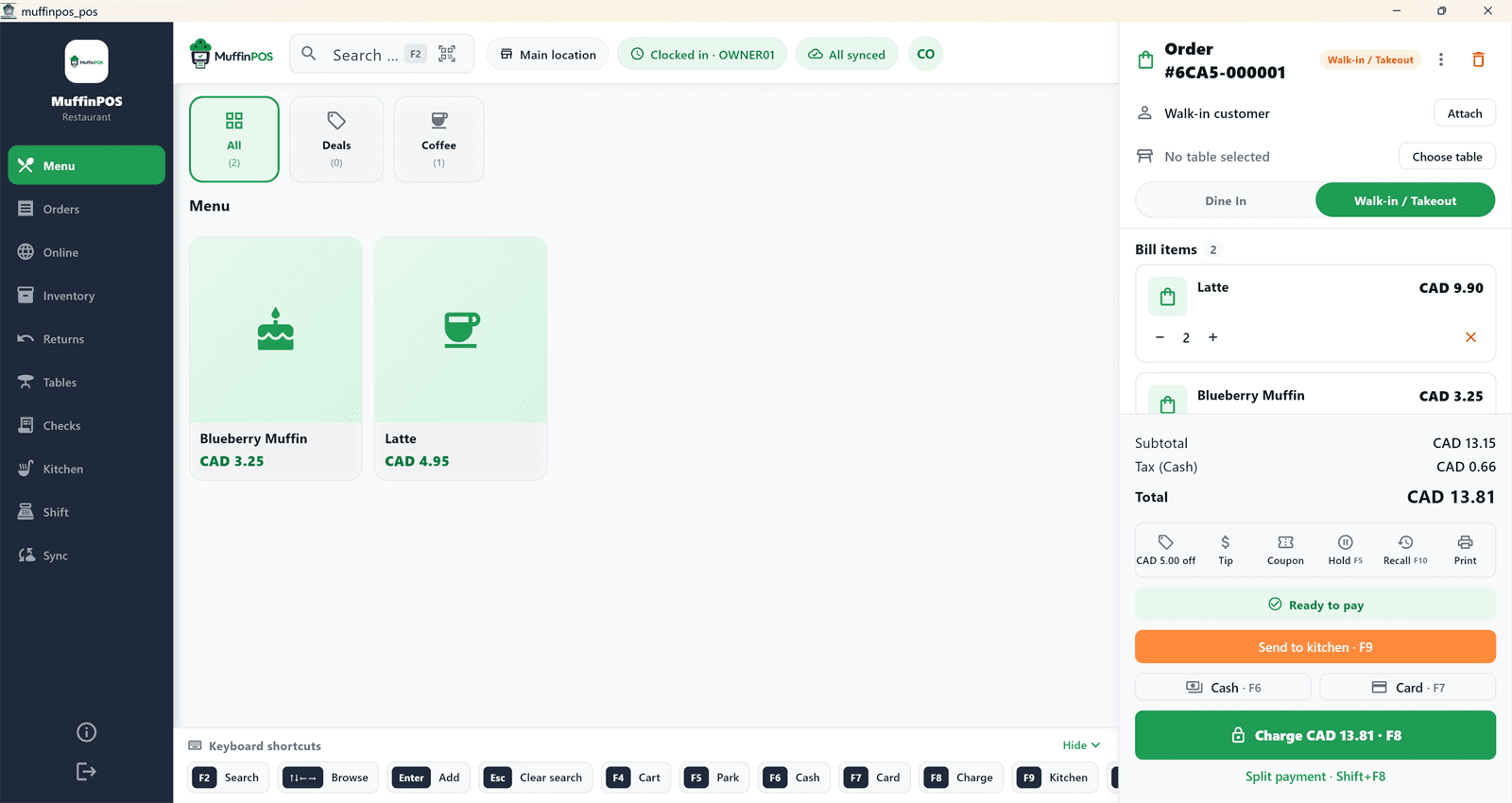
Till with two lattes and a muffin in the order, total 13.81 Step 4: Take cash and give change
Press "Cash". Tap one of the quick amounts, or type what the customer handed you. MuffinPOS shows the change to give back.
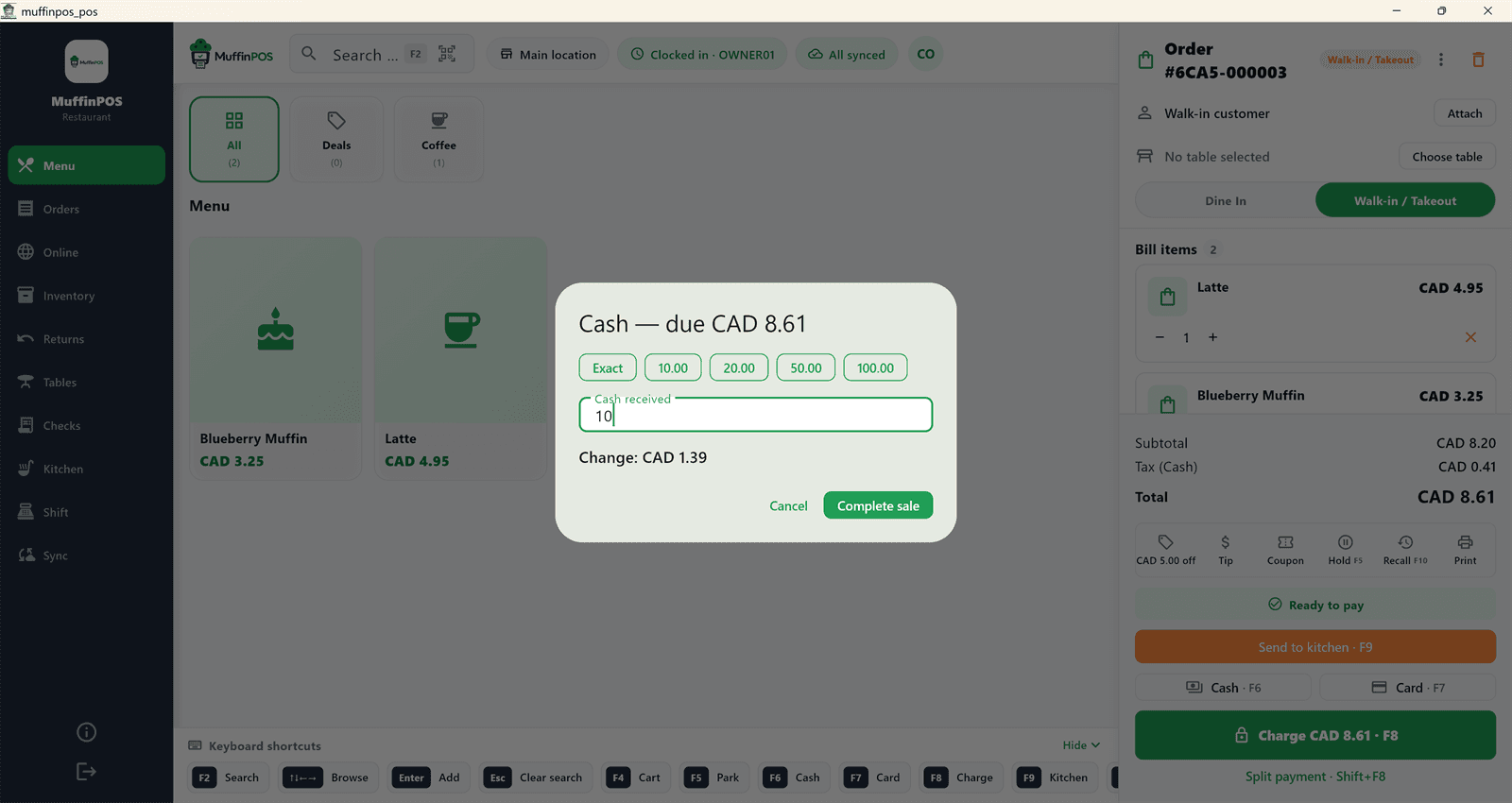
Cash window showing 10.00 received and 1.39 change Step 5: Finish the sale
Press "Complete sale". The receipt prints if a printer is connected, and a green note shows the amount paid and the change.
The order is cleared and ready for the next customer. The sale appears in the merchant portal within a few seconds.
Tip: No internet? Keep selling. The till saves every sale and sends it to the portal when the connection is back.
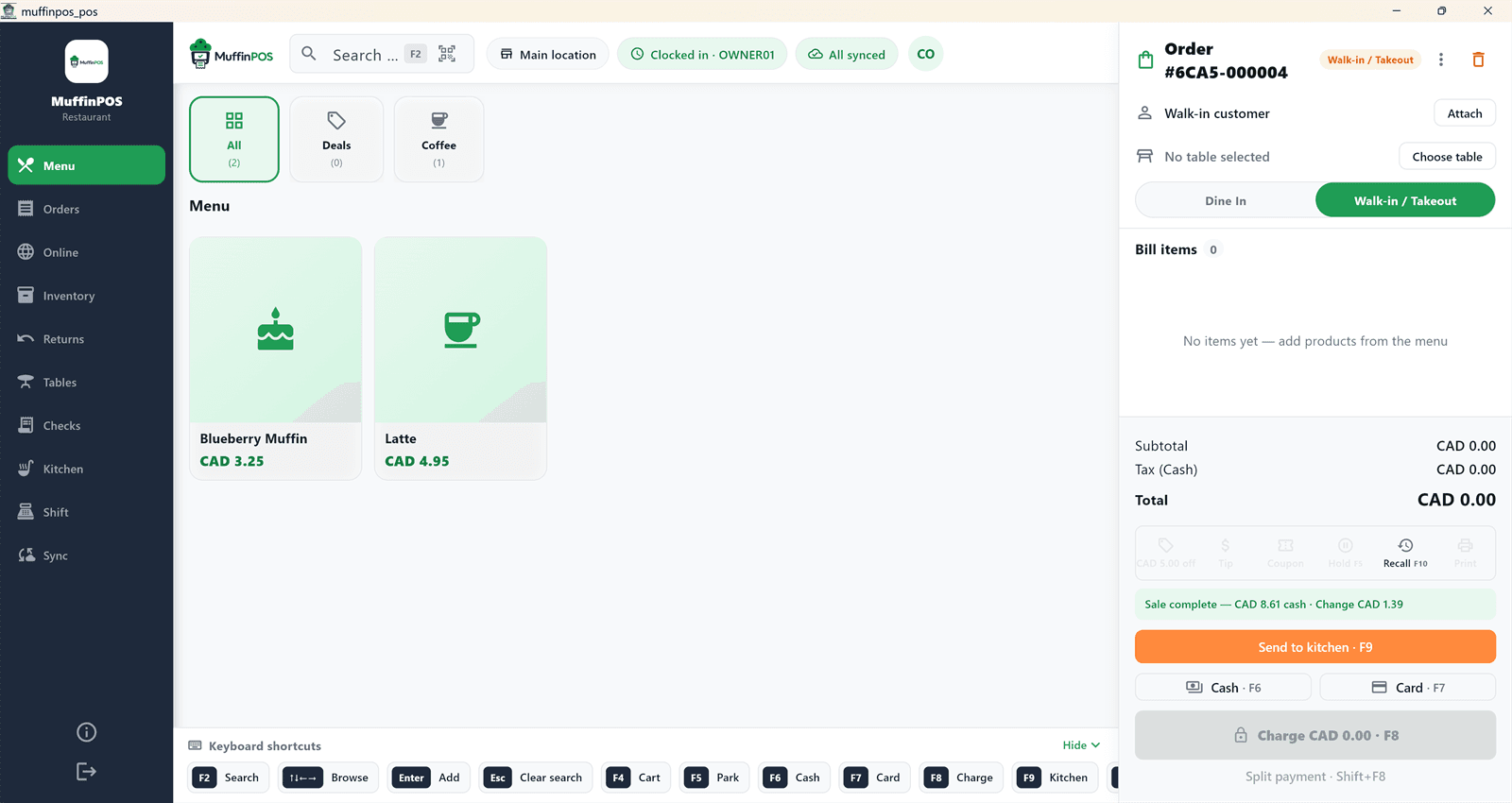
Till after a completed sale showing 8.61 paid in cash with 1.39 change Step 6: Close the shift at the end of the day
Open "Shift" in the left menu. Count the cash in the drawer, type the total in "Closing cash counted" and press "Close shift (Z report)".
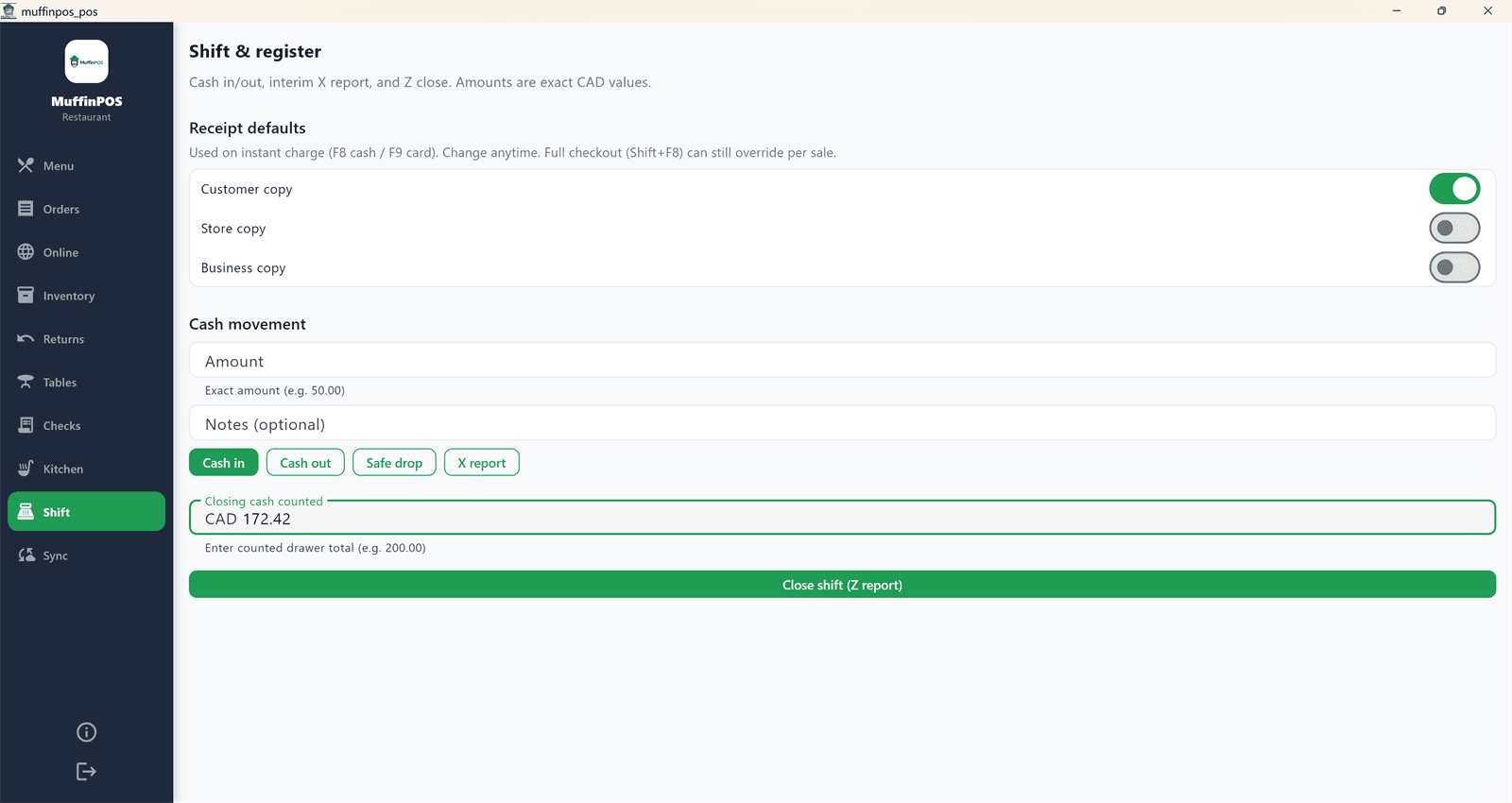
Shift screen with closing cash counted and the Close shift button Step 7: Check your end-of-day report
MuffinPOS shows how many orders you made, your total sales, how much cash should be in the drawer and the difference from what you counted.
A variance of 0.00 means the drawer is exactly right. Press "Open new shift" when you start again tomorrow.
Tip: Every sale from the shift is also in the merchant portal under Reports, so you can look back at any day.
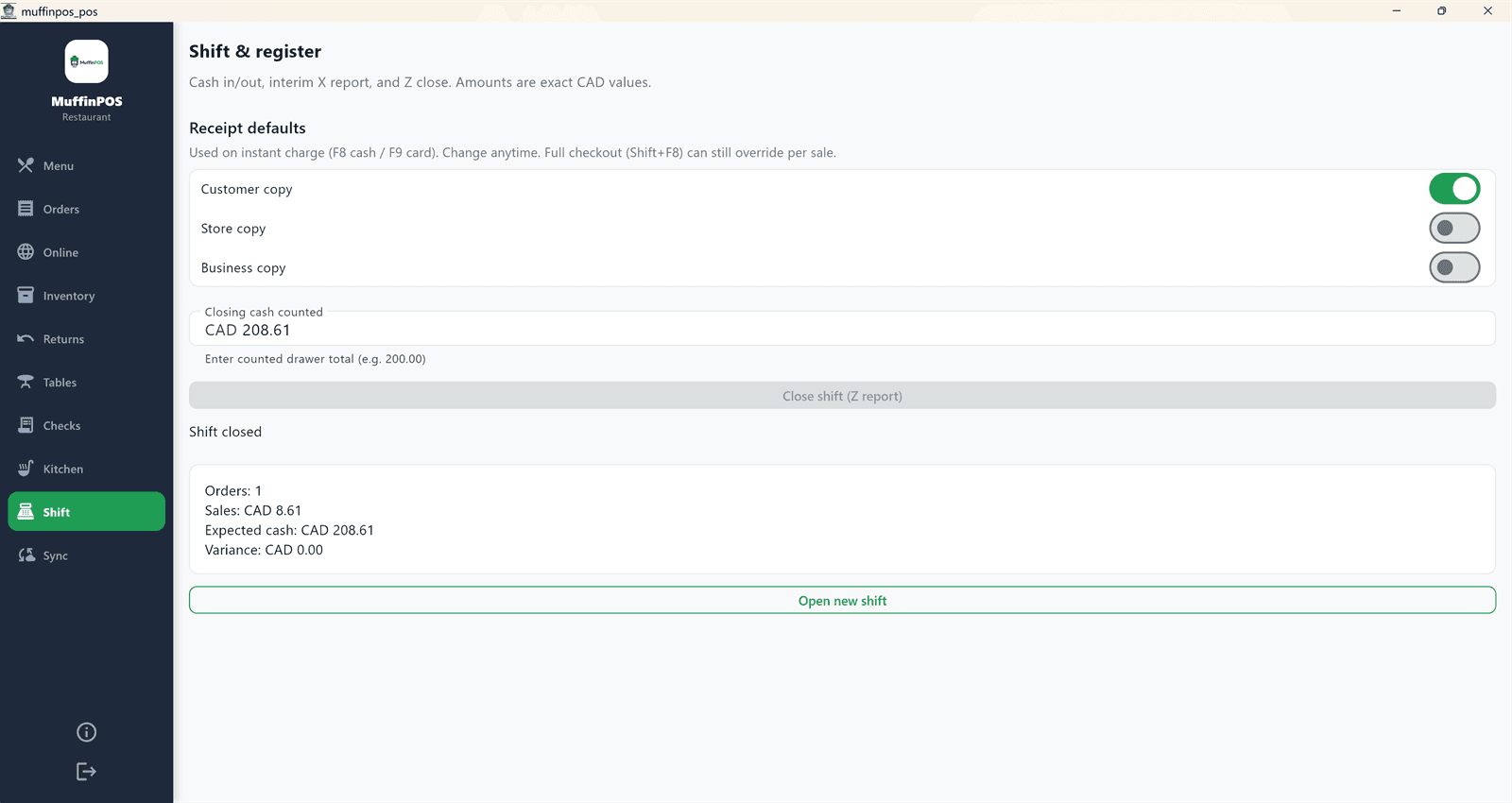
Z report showing 1 order, 8.61 in sales, 208.61 expected cash and 0.00 variance
Stuck on a step?
Tell us which guide and step you are on and we will walk you through it.