
Guide 1 of 4 · Web
Start your free trial
Create your MuffinPOS account in about a minute. No card needed, free for 30 days.
All guides · About 3 minutes · For owner
Before you start, have ready
- An email address you can open
- A 4 to 6 digit PIN you will remember
Step 1: Open the free trial page
Go to muffinpos.com and press "Start Free Trial". You will not be asked for a card.
Type your business name, pick the kind of business you run and choose your country. The country sets your money (US dollars, Canadian dollars or Pakistani rupees).
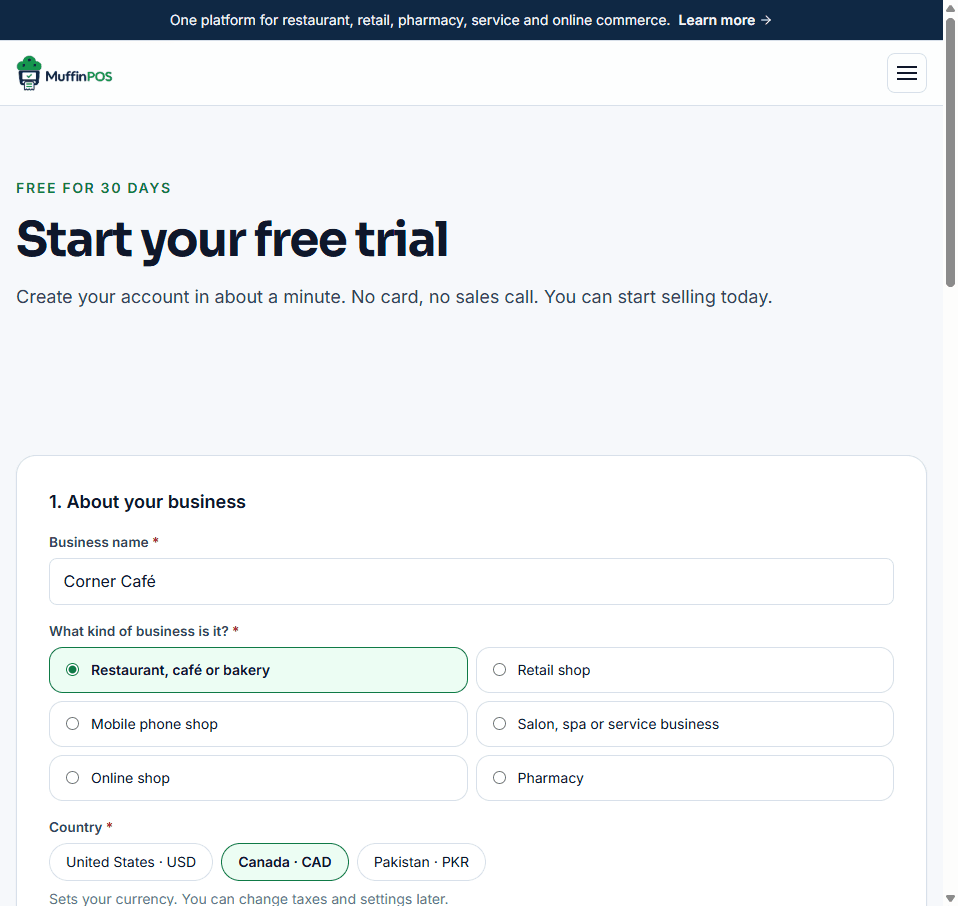
Free trial form with business name, business type and country Step 2: Create your owner account
Enter your name, email and a password of at least 8 characters. You will use the email and password to sign in to the merchant portal on the web.
Choose a till PIN. This is the short number you type on the desktop till together with the employee code OWNER01.
Tip: Keep your PIN private. Anyone with your PIN can sell, refund and close shifts as the owner.
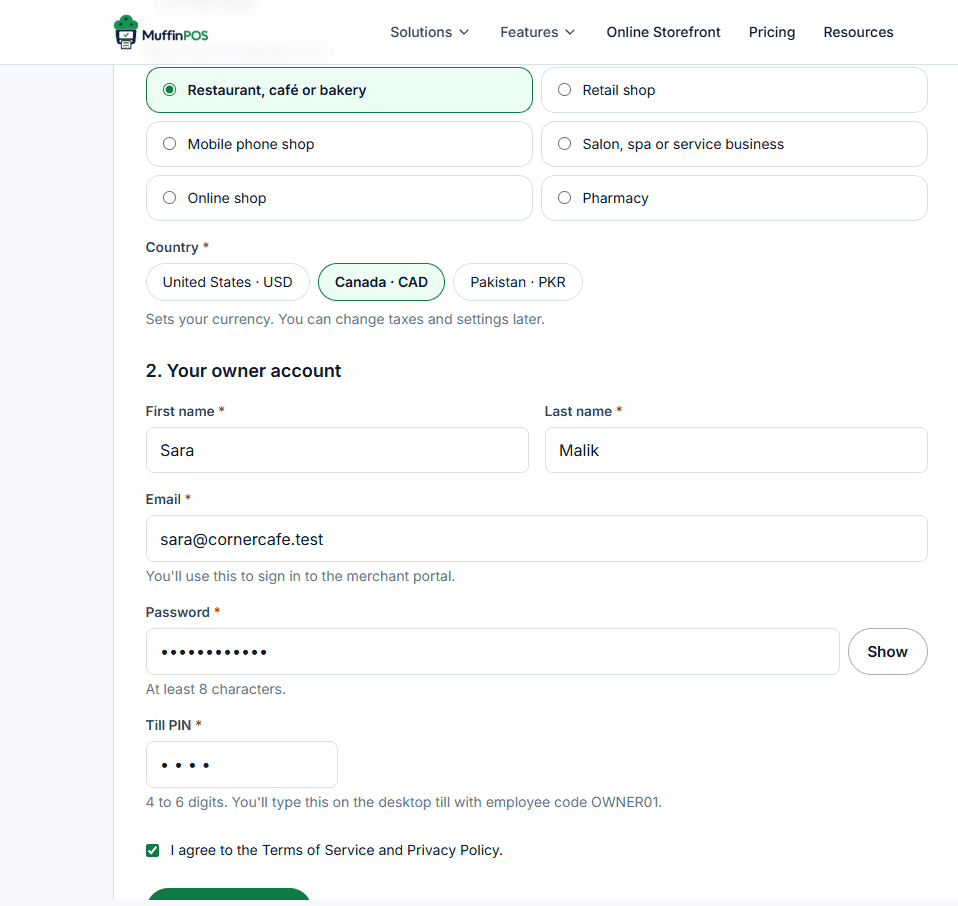
Owner account section with name, email, password and till PIN Step 3: Your business is ready
After a few seconds you will see "is ready" with the date your trial ends. We also send these details to your email.
From here you can open the merchant portal, download the desktop till, or read the next guide.
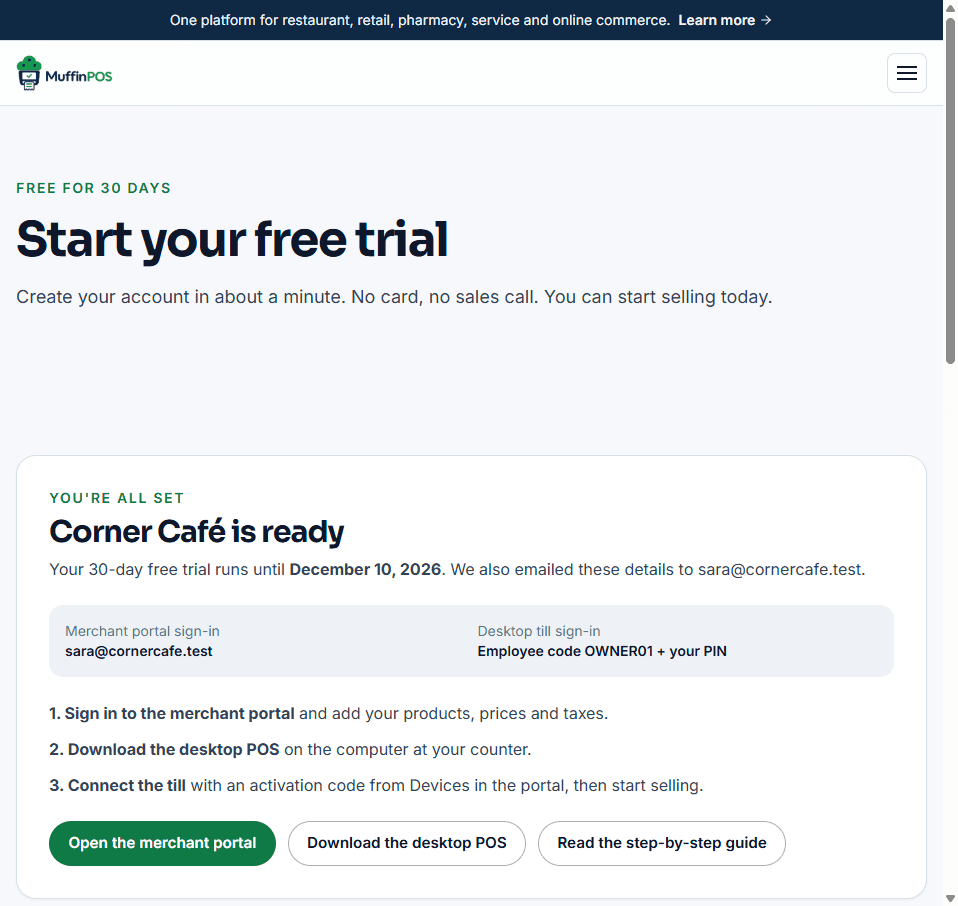
Confirmation screen showing the trial end date and next steps Step 4: Sign in to the merchant portal
Press "Open the merchant portal". Your email is already filled in. Type your password and press "Sign in".
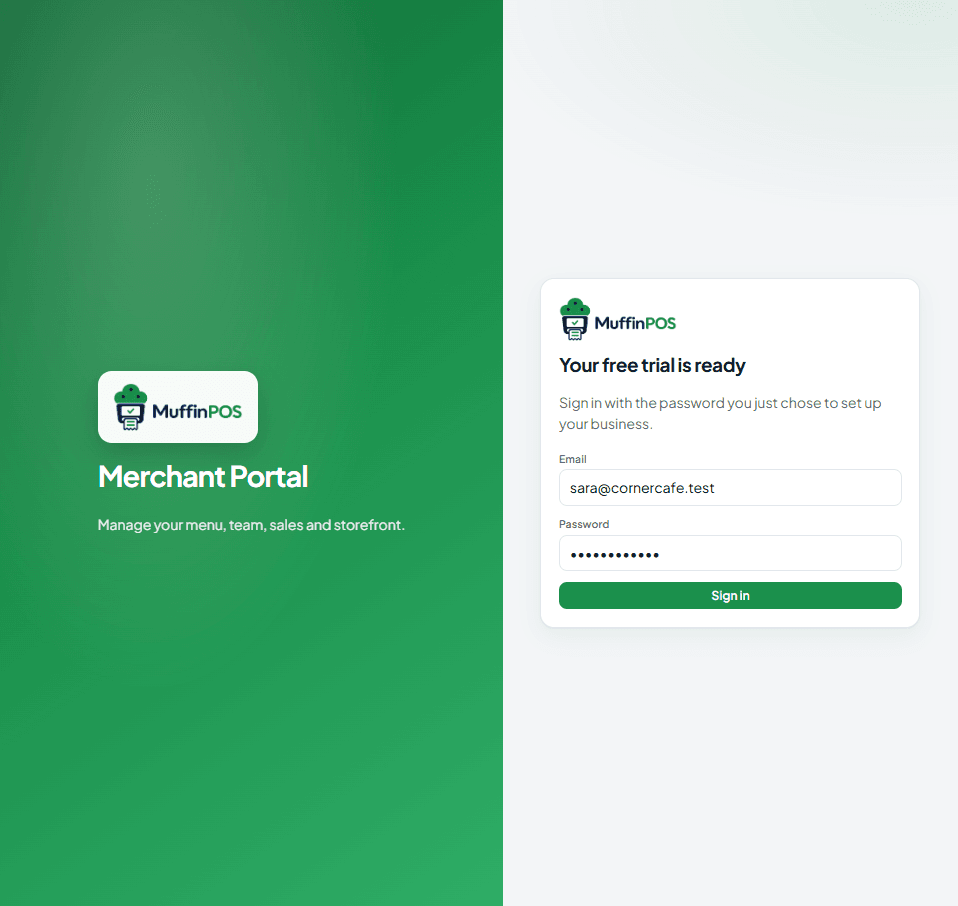
Merchant portal sign-in page Step 5: Find your way around the dashboard
The green bar at the top shows how many trial days are left. The menu on the left has everything: your products, taxes, staff, reports and POS setup.
Today's sales start at zero and fill in as soon as your till makes its first sale.
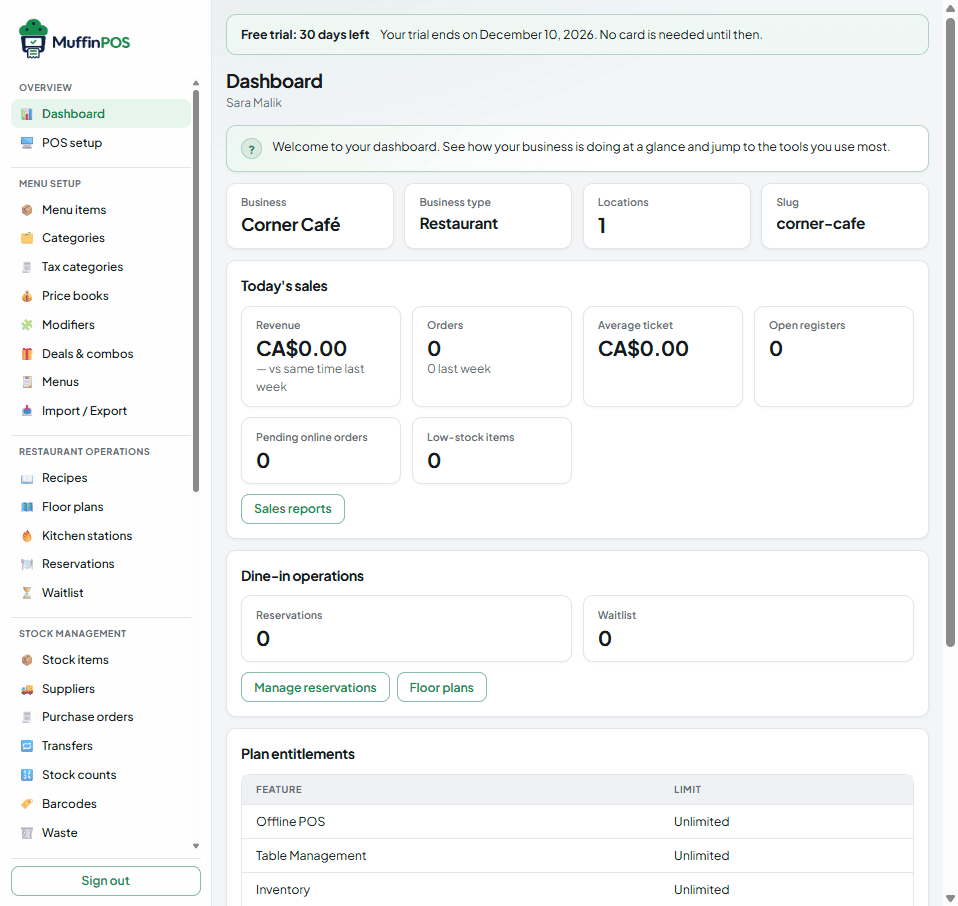
Merchant portal dashboard with the free trial banner
Stuck on a step?
Tell us which guide and step you are on and we will walk you through it.